3D modeling tools
Read the guide
Use faces, edges, and solid primitives to develop geometry without redrawing it from scratch.
Start with the volume that is closest to the object
A solid primitive or extrusion can establish the proportions while you work out the shape. Check the main silhouette before rounding edges or refining small surfaces.
Extract the part you need
Choose the Extract mode based on what comes next. An extracted surface can be worked on as a surface. Extracted curves give you geometry to trace, shape, or use as a path. Orbit the original model when you need to check which face or edge you picked.
Work through it
- Begin with an extrusion or a solid that is already close to the shape you need. Orbit it so you can see both the face you intend to edit and an adjacent edge.
- Use Push/Pull on a face when the job is changing its depth. For an edge treatment, work in a view that lets you select the specific edge without picking one behind it.
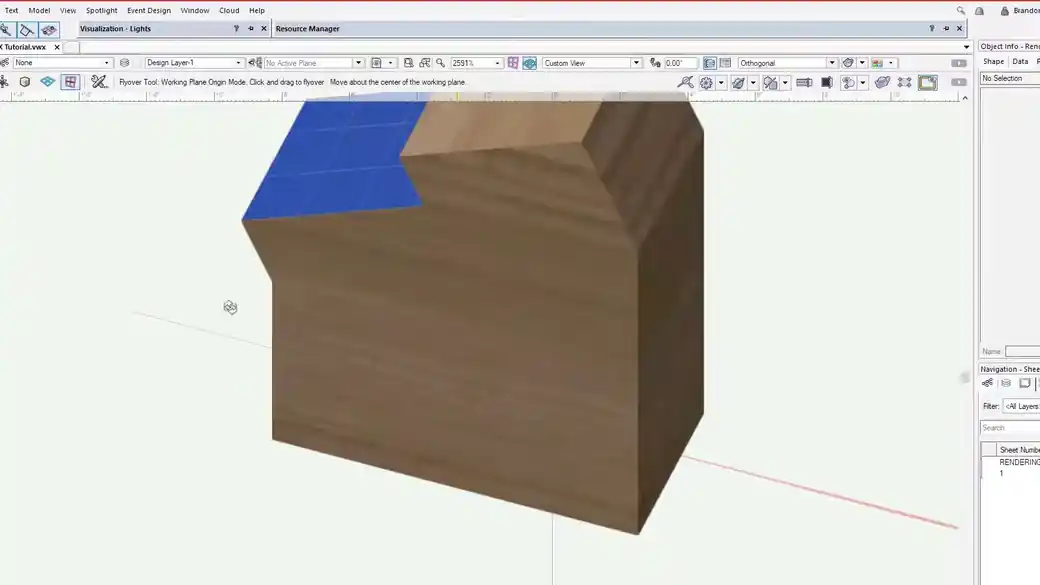
- Use Extract on a face or edge when you need a separate surface or curve. Move a copy a short distance to inspect the result, then return it to the reference position if needed.
Quick reference
- Push/Pull
- Changes a surface or face in the direction it faces. Use another view to check the resulting depth.
- Fillet Edge
- Rounds an edge. Start with a radius that can fit on both adjoining faces.
- Extract
- Copies useful geometry out of an existing object. The chosen mode determines whether you get a curve or a surface.
Put it into a scenic drawing
Start with a block for a built-up scenic pilaster. Push a face back to form a step, then extract the sloped face as a reference for a separate trim piece.
What to check
If you get a thin surface when you expected closed geometry, check which Extract mode was active. A surface can be a useful reference and still need another operation before it has thickness.