Working with 2D symbols
Read the guide
Reuse a drafted element and understand what changes when you edit its definition or a single placement.
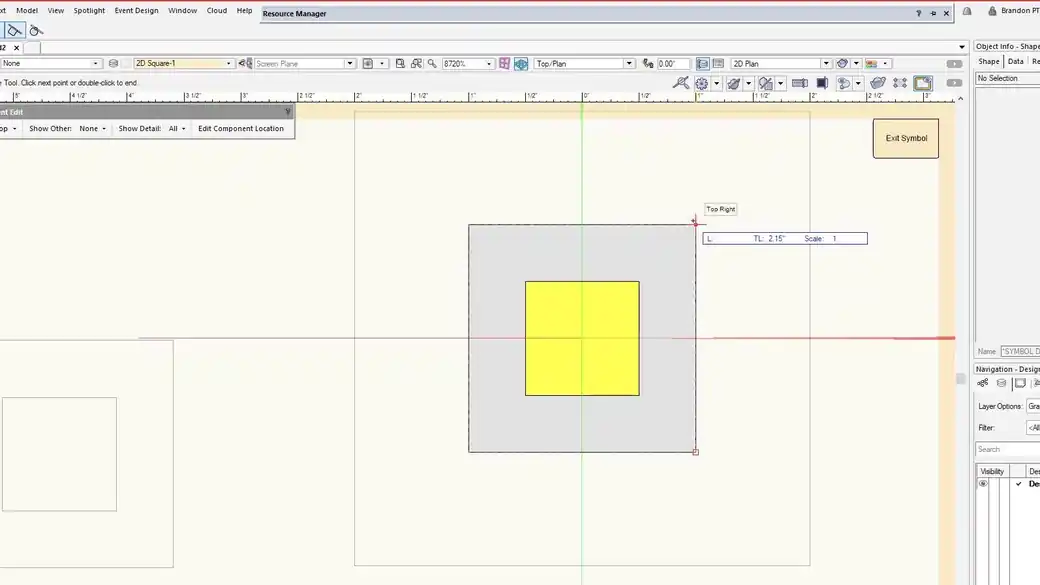
Use a symbol when edits should travel
A symbol definition can serve many placed instances. Editing the definition can update placements that share it. An instance can be positioned, rotated, or scaled for its particular job without redrawing the resource.
Choose editable geometry when the element will vary
Some symbols convert to a group when you place them. Once placed that way, the geometry can be adjusted independently. Decide whether you want the placements linked before building a drawing around them.
Work through it
- Select the drafted elements that belong together, create a symbol, and choose an insertion point you can reuse. For a scenic unit, a center or a reference corner is often more useful than an arbitrary point.
- Place several instances from the Resource Manager. Rotate or scale one instance and check that the others do not move.
- Edit the symbol definition and observe where the change appears. For a one-off variant, duplicate the definition or use a resource set up to place as an editable group.
Quick reference
- Definition
- Stores the shared geometry and insertion point. Edit it when all linked placements should change.
- Instance
- One placement of a definition. Rotate, move, or scale it to suit that location.
- Group
- A collection of editable objects. Once a placement becomes a group, it can be revised independently.
Put it into a scenic drawing
For repeated decorative panels, update the screw locations in the definition when every panel should change. Rotate an individual placement to fit a wing without redrawing the panel.
What to check
If changes do not reach the other placements, verify the object is still a symbol instance. A group can look identical in plan and be edited independently.