The Resource Manager
Read the guide
Find the right kind of resource, bring it into the drawing, and keep reusable assets easy to find.
Search by resource type
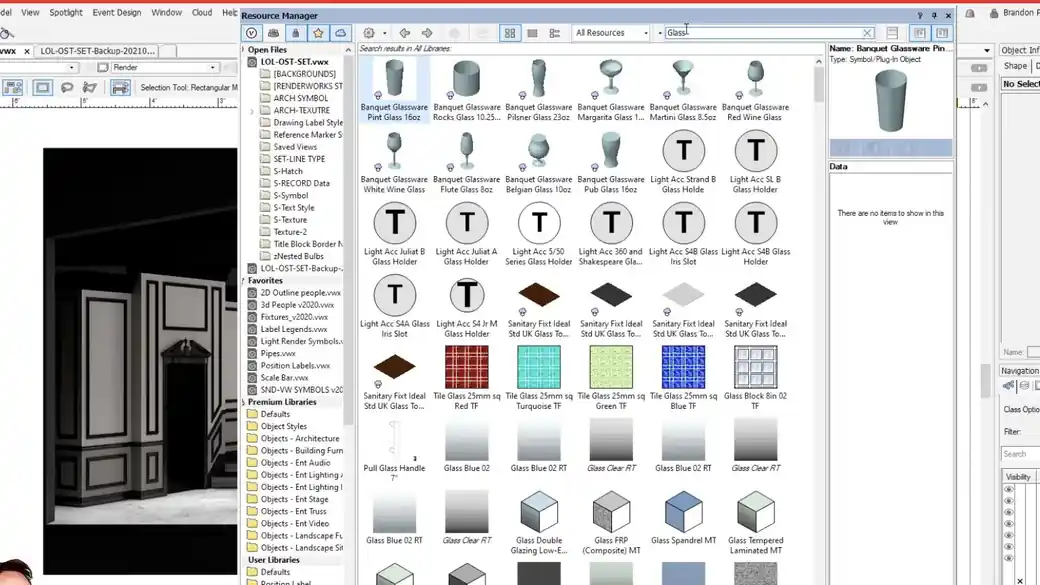
A search for glass may return symbols, materials, tiles, and Renderworks textures. Filter for the type you need before importing it. Check the preview and the name before assigning the resource to an object.
Keep resources you want to find again
Use a favorite library file for resources you use across shows. Keep project-specific variants in the project file so they do not get mixed in with a general library. Use names that let you tell the resource types apart.
Work through it
- Open the Resource Manager and note which file or library you are browsing. Search for a familiar term such as glass.
- Choose a resource type filter, then compare names and previews. A Renderworks texture is useful for a surface. A symbol is a placeable object with its own geometry.
- Import or apply the resource and confirm it now appears in the active file. Add the library as a favorite if you expect to pull resources from it on multiple projects.
Quick reference
- Current file
- Contains the resources already available in the drawing. Changes here can affect objects using that resource.
- Library
- Contains reusable stock or custom resources. Check the file and type filter when you search.
- Favorites
- Provides quick access to a file you return to across projects. Give personal resources names you can find later.
Put it into a scenic drawing
Find a blue glass texture, apply it to a test solid, and compare it under light. If you change the shader, give the new version a descriptive name so you can still find the stock resource later.
What to check
If your search returns an unexpected mix of items, review the resource type filter and source scope. If it returns nothing, confirm the resource library is available and try a shorter search.