The Vectorworks interface
Read the guide
Get oriented in the drawing window and find the controls you will use on every scenic project.
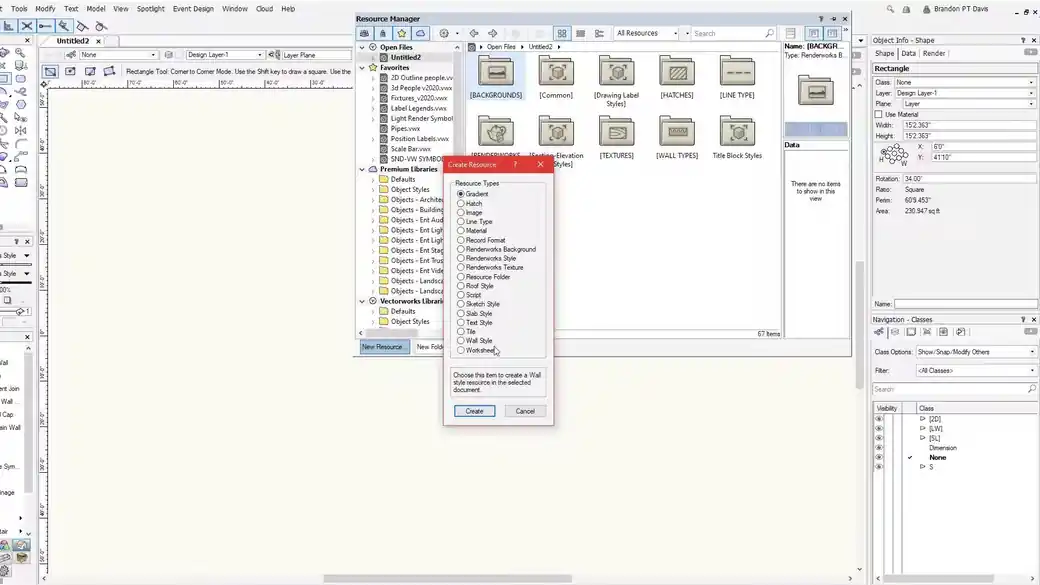
Find the controls for the selected object
Select a simple shape and look at the Object Info palette. It shows the dimensions and properties you can change directly. The Mode bar controls how you use the active tool before and during drawing.
Know which view and layer you are in
Use Top/Plan to orient yourself, then change to a 3D view to confirm what you have drawn. The Navigation palette is where this lesson switches between design layers, sheet layers, and classes. Start by finding each one in your own workspace.
Work through it
- Choose the Rectangle tool and watch the Mode bar change. Use it to decide how you want to draw the rectangle, such as from a corner or from the center.
- Select the finished object and find its values in Object Info. Change one dimension and notice which part of the object moves.
- Use the View bar to check the current view, layer, class, and render mode. Open the Navigation palette and identify where design layers, sheet layers, and classes live.
Quick reference
- View bar
- Shows where you are in the document, including view direction, active layer and class, and render mode.
- Mode bar
- Shows the options for the active tool. Change it before drawing if the tool needs a different set of input points.
- Object Info
- Shows what you selected and which values you can edit. Check for a single selection when you need one object’s dimensions.
Put it into a scenic drawing
Draw the outline of a 4 × 8 platform in Top/Plan and use Object Info to verify its dimensions. Then switch to isometric to inspect the shape in relation to the rest of the drawing.
What to check
When a control is missing, verify which tool is active and whether an object is selected. Some palettes can be hidden, docked, or visible only in a particular workspace.