The Basic tool palette
Read the guide
Set up drawing references and understand how tool modes change the geometry you make.
Make a reference you can return to
A locus can mark a point such as 0,0 without printing as part of the drawing. Use a reference like this for a centerline or a point you need to snap to repeatedly.
Look at the Mode bar before drawing
A rectangle can start from a corner, a center, or another construction point depending on the active mode. Pick the mode that suits the geometry. Then use the Object Info palette to check the dimensions you actually drew.
Work through it
- Start in Top/Plan. Place a locus at a known reference point and use it to start a simple rectangle. Check the shape’s width and height in Object Info.
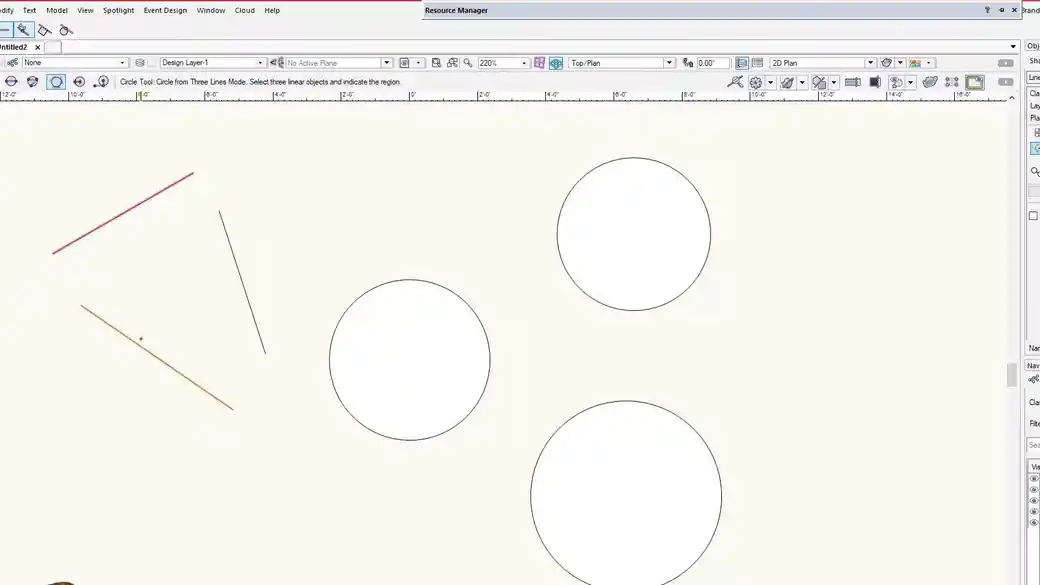
- Choose a different Rectangle tool mode to draw from the center. Try a circle by center and radius, then compare the points each mode asks you to provide.
- Turn on the snaps you need and watch the cue before you click. A center snap and an edge snap can produce very different results even when the cursor is close to the same place.
Quick reference
- Locus
- A reference point you can snap to and keep in the drawing without printing a mark.
- Corner mode
- Starts a rectangle from its corner. Use it if the object aligns to a fixed edge or endpoint.
- Center mode
- Starts from the center of the shape. Use it to keep both sides aligned around an axis.
Put it into a scenic drawing
Lay out a platform around a centerline. Use center mode for the main rectangle and keep the locus as the reference for symmetrical holes or notches.
What to check
When a tool seems to behave differently than expected, check the Mode bar first. Then check the active plane and the snap cue before redrawing the object.