Editing 2D geometry
Read the guide
Use Mirror, surface operations, and Duplicate Along Path to edit the geometry you already have.
Use a centerline when the scenery is symmetrical
Draw one side, then use Mirror’s duplicate mode to keep the original. Check that the mirror axis is where the object should meet, particularly on a flat with a curved opening. The active mode matters as much as the tool.
Decide which outline you need
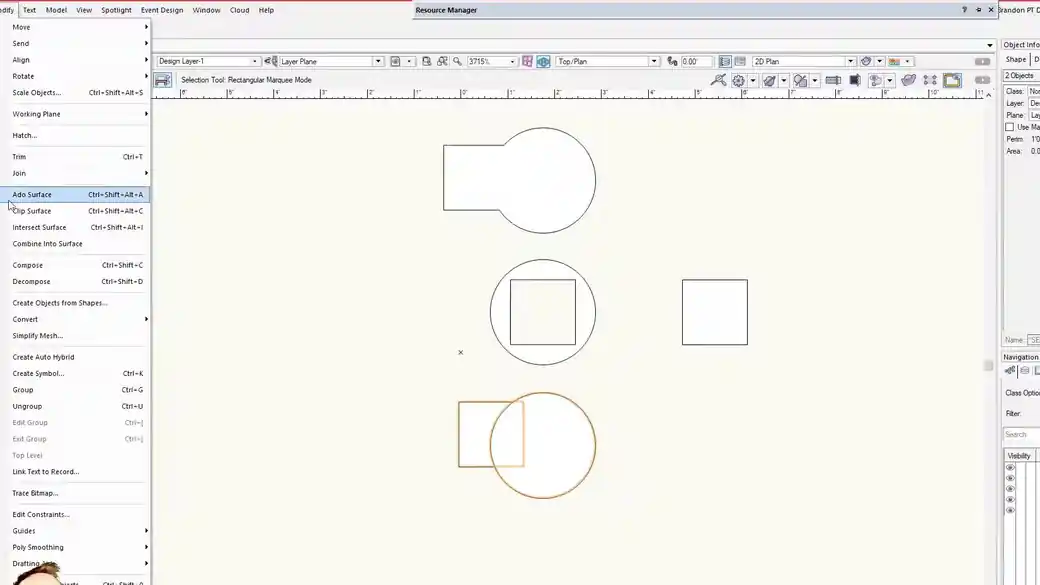
Add Surface joins overlapping shapes. Clip Surface removes part of one shape. Intersect Surface keeps the area they share. For repeating elements, spacing the objects along a path gives you a defined interval to adjust as the drawing develops.
Work through it
- Draw one half of a symmetrical opening and put a temporary centerline through the intended seam. Choose the Mirror tool’s duplicate mode and snap both points of the mirror axis to the centerline.
- Save a copy of the source outlines if you expect to revise them. Select the outlines and use Add Surface to keep their combined footprint, Clip Surface to cut one away, or Intersect Surface to keep the overlap.
- For repeated details that follow a curve, choose the detail and its path for Duplicate Along Path. Review spacing and orientation at both ends before adding any hand-adjusted pieces.
Quick reference
- Add Surface
- Retains the entire area covered by either of the two overlapping shapes.
- Clip Surface
- Removes the area where the clipping object crosses the object you are cutting.
- Intersect Surface
- Retains only the shared area. Use it when the overlap is the finished shape you need.
Put it into a scenic drawing
Mirror the left half of a proscenium opening, join the outline, then cut the arch out of a simple rectangle. Reuse the same centerline when laying out trim on either side.
What to check
A gap at the seam usually starts with an off-center snap or an open contour. Check the symmetry and closing endpoints before exporting the shape to another tool.