Workspaces and templates
Read the guide
Understand what a workspace and a template each control before installing either one.
Recorded in Vectorworks 2021. See the current workspace and template guide for newer versions.
Know which file changes which part of the setup
A workspace changes where you find tools and commands. A template gives a new drawing a starting structure with classes, layers, sheet layouts, or resources. The supplied pair in the video is designed to work together.
Open a new drawing and check the result
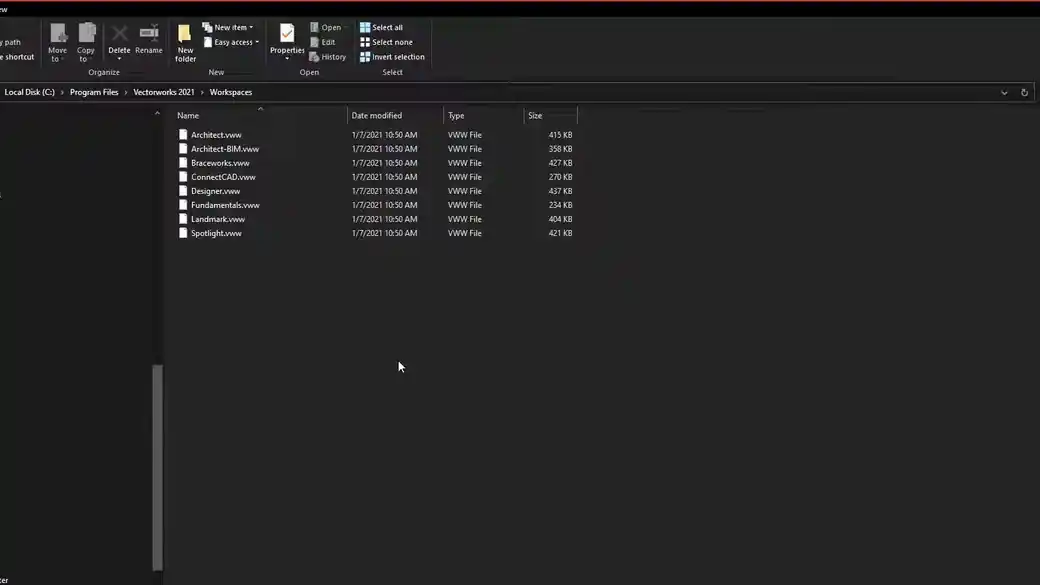
Verify that the expected tools appear in the workspace, then create a new file from the template and look at its classes and layers. The recording is from Vectorworks 2021, so use the current guide for installation locations.
Work through it
- Identify the workspace and template files before installing them. The workspace controls tool and menu arrangement. The template provides the contents and settings of a new drawing.
- Use the current workspace guide for the folder locations and version-specific setup. After installing, choose the workspace from Vectorworks and confirm the intended tool sets appear.
- Create a new drawing from the template. Check its units, view, layer names, class structure, and title block before you start drawing.
Quick reference
- Workspace
- Arranges tools, menus, and shortcuts. Confirm the active workspace after installation.
- Template
- Provides units, classes, layers, resources, and sheet setup when you start a new document from it.
- Project file
- Holds the scenery and drawings for a specific production. Keep project-only changes in that file.
Put it into a scenic drawing
For a scenic project, the workspace might put dimension, viewport, and camera tools within easy reach. The template can already contain architecture and scenery layers plus a blank sheet.
What to check
If the tools appear but the drawing opens empty, confirm that you created the document from the template. If the starter file is correct but the tools are missing, confirm which workspace is active.