Custom page layouts
Read the guide
Set up a 24 × 36-inch sheet and export it as a single PDF page.
Check the sheet before exporting
A single drafting sheet can show several printer-sized pages in the page setup. Check the overall printable area against the sheet size, including the title block and the intended margins.
Open the PDF and read the page size
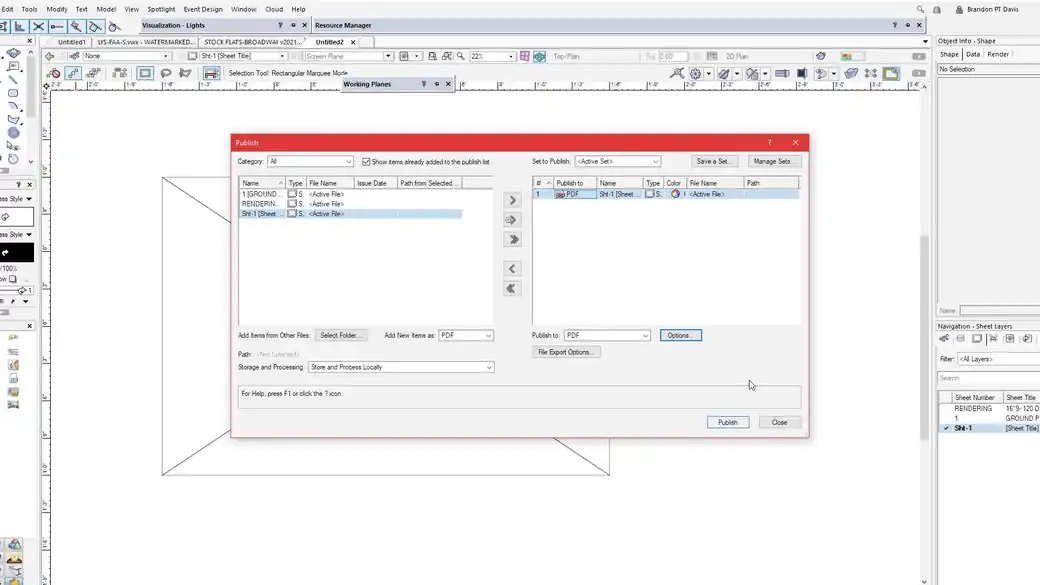
Use the whole printable area in Publish when the output should be one large sheet. Open the PDF and confirm both the number of pages and the actual dimensions. A document filling the screen can still be the wrong size.
Work through it
- Set the drawing or sheet to a 36-inch-wide by 24-inch-high landscape page. Use a single printable area for a one-sheet PDF and verify the page outline in the drawing.
- Confirm that the title block, viewport labels, and any notes fit within the intended edge margins. In Publish, choose the sheet and include its whole printable area.
- Open the resulting PDF and check that it contains one page at 36 × 24 inches. For a test print, use Actual Size if you need to preserve the drawing scale.
Quick reference
- Sheet size
- The physical size the final PDF should report. Check both dimensions and page orientation.
- Printable area
- Sets what area goes into the exported document. Check for page outlines that tile a larger drawing.
- Actual Size
- Preserves drawing scale when the printer and paper can fit the full sheet. Check a known dimension after printing.
Put it into a scenic drawing
For a shop elevation that will be plotted at quarter-inch scale, check a known dimension against the printed scale bar after export. A print driver may offer to shrink the page to fit.
What to check
Multiple letter-size pages usually indicate a page setup based on printer tiling. Check both the Vectorworks page setup and the output PDF’s reported size.