Basics of textures
Read the guide
See how a texture changes when you adjust its scale, mapping, and response to light.
Recorded with the earlier texture editor. For the current tools, see PBR Textures in Vectorworks 2027.
Look at the grain before adding more detail
On a set with wood across the floor and the built-in furniture, check the grain direction and scale on each surface. In Vectorworks, mapping controls how the texture sits on the object. A flat panel and a curved piece may need different projections.
Look at the surface under light
Color and pattern are only part of the texture. Reflectivity controls how much light the surface reflects. Bump makes fine relief visible in the lighting, and transparency affects how much you can see through the material. Change one property at a time and render the same view so you can identify what changed.
Work through it
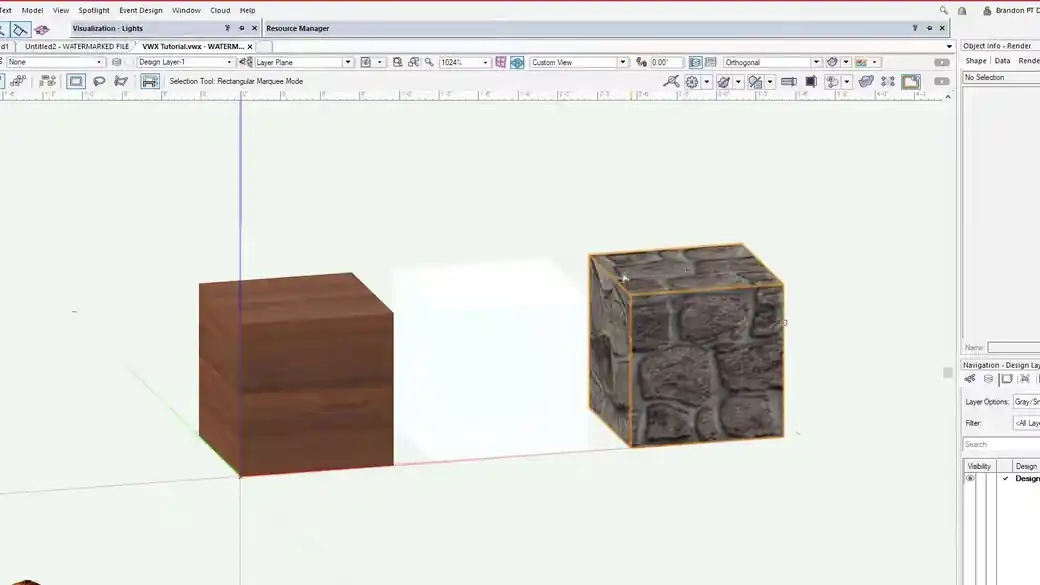
- Create a simple test object and assign the texture. View at least two faces so you can see how the mapping behaves at a corner.
- Set texture size from a real measurement. A stone course and a length of wood grain should read at the right scale for the scenery, even before you adjust how the surface reflects light.
- Keep the camera and lighting fixed while you change one shader. Compare the wood grain, the transparency of the glass, and how highlights pick up the relief in the stone.
Quick reference
- Mapping
- Decides how the texture is projected onto the object. Check a corner to catch grain or pattern changes.
- Reflectivity
- Describes how a surface reflects light. View the same surface from different angles to see the effect.
- Bump and transparency
- Bump changes the way fine relief reads in light. Transparency controls what you see through the surface.
Put it into a scenic drawing
On a scenic shopfront, set the texture size using the stone joints, then set the wood grain direction on the frame. Use a separate glass test with something behind it to check how much of the interior you can see.
What to check
If the material looks wrong only on one face, check mapping before editing the texture resource. If several objects using the same resource change together, duplicate the resource before making a material variant.