
3D Modeling Basics
Learn the foundational 3D modeling operations in Vectorworks: Extrude, Add Solids, Subtract Solids, Intersect Solids, Section Solids, Multiple Extrude, Sweep, Split, and Extrude Along Path.
Extrude is the first move: a 2D rectangle becomes a four-foot-tall object, and the Object Info palette shows the X, Y, Extrude, and bottom Z values that control its position in space.
The solid operations come next. Add Solids combines selected volumes. Subtract Solids removes one volume from another based on the selected direction. Intersect Solids keeps only the overlapping volume. Edit Solid keeps earlier operations available for adjustment.
Section Solids, Multiple Extrude, Tapered Extrude, Sweep, Split, and Extrude Along Path expand that vocabulary. The recurring idea is that the starting 2D shape, object order, Z-plane position, and path/profile relationship determine the final form.
Start with a measured 2D object
Extrude begins with a 2D shape whose X, Y, height, and bottom Z can be checked in Object Info.
Starting at 0,0 with a two-foot square makes the first volume easy to read.
Use Model menu commands to create volume
Extrude, Multiple Extrude, Tapered Extrude, Sweep, and Extrude Along Path each turn 2D geometry into a different kind of 3D form.
The command determines how the profile becomes volume.
Use solid operations to edit volume
Add Solids, Subtract Solids, Intersect Solids, Section Solids, and Split refine solids after they exist.
Selection order and highlighted direction matter, especially in Subtract Solids and sectioning.
Modeling grammar
2D profiles become volume through command order.
Plane, Z height, selection order, stacking order, path direction, and profile location all change the model the command produces.
PROFILE
Start with the 2D shape that defines the volume
Extrude, sweep, multiple extrude, and tapered extrude all begin with readable 2D geometry.
ORDER
Selection order changes solid operations
Add, subtract, intersect, and section solids depend on which object is selected and how the cut is directed.
PATH
Centerline and path direction matter
Extrude Along Path behaves best when the profile and path are positioned with intent.
Add/Subtract/Intersect
Solid operation sequence
Use Model > Add Solids, Subtract Solids, and Intersect Solids as different ways Vectorworks combines overlapping solid volumes.
- Add Solids creates one combined solid.
- Subtract Solids removes volume.
- Intersect Solids keeps overlapping volume.
Profile/path
Extrude Along Path centerline logic
Extrude Along Path depends on the relationship between the profile and the path centerline.
- Draw the profile.
- Draw the path.
- Offset the path when the profile must align to an edge.
Stack/order
Multiple Extrude and Sweep setup
Multiple Extrude, Tapered Extrude, and Sweep all depend on setup choices before the command runs.
- Check stacking order.
- Place the locus or center correctly.
- Use segment angle to control sweep smoothness.
One guiding idea
“Most complex 3D forms are a few simple operations used in the right order.”
Extrude makes the Z plane visible
In Top/Plan, the first extrude can look like nothing happened. The object becomes clear only when the view changes into 3D and the Object Info palette shows a four-foot extrusion sitting on the Z plane.
That moment matters because it connects 2D drafting to 3D space. The rectangle still has X and Y dimensions, but it now has height and a bottom Z value that can lift it above the plane.
Add, Subtract, and Intersect Solids each answer a different volume problem
Add Solids combines two selected solids into one object. Subtract Solids removes one selected volume from another and depends on which object is highlighted as the subtracting direction. Intersect Solids removes everything except the shared overlap.
Edit Solid can reopen the previous iteration. That is an important modeling habit: solid operations are not just final shapes, they can preserve a history that remains adjustable.
Profile, order, and path control the advanced forms
Multiple Extrude depends on stacking order. The top object in the stack becomes the top profile and the bottom object becomes the bottom profile. A locus point can even become the top profile for a pyramid-like form.
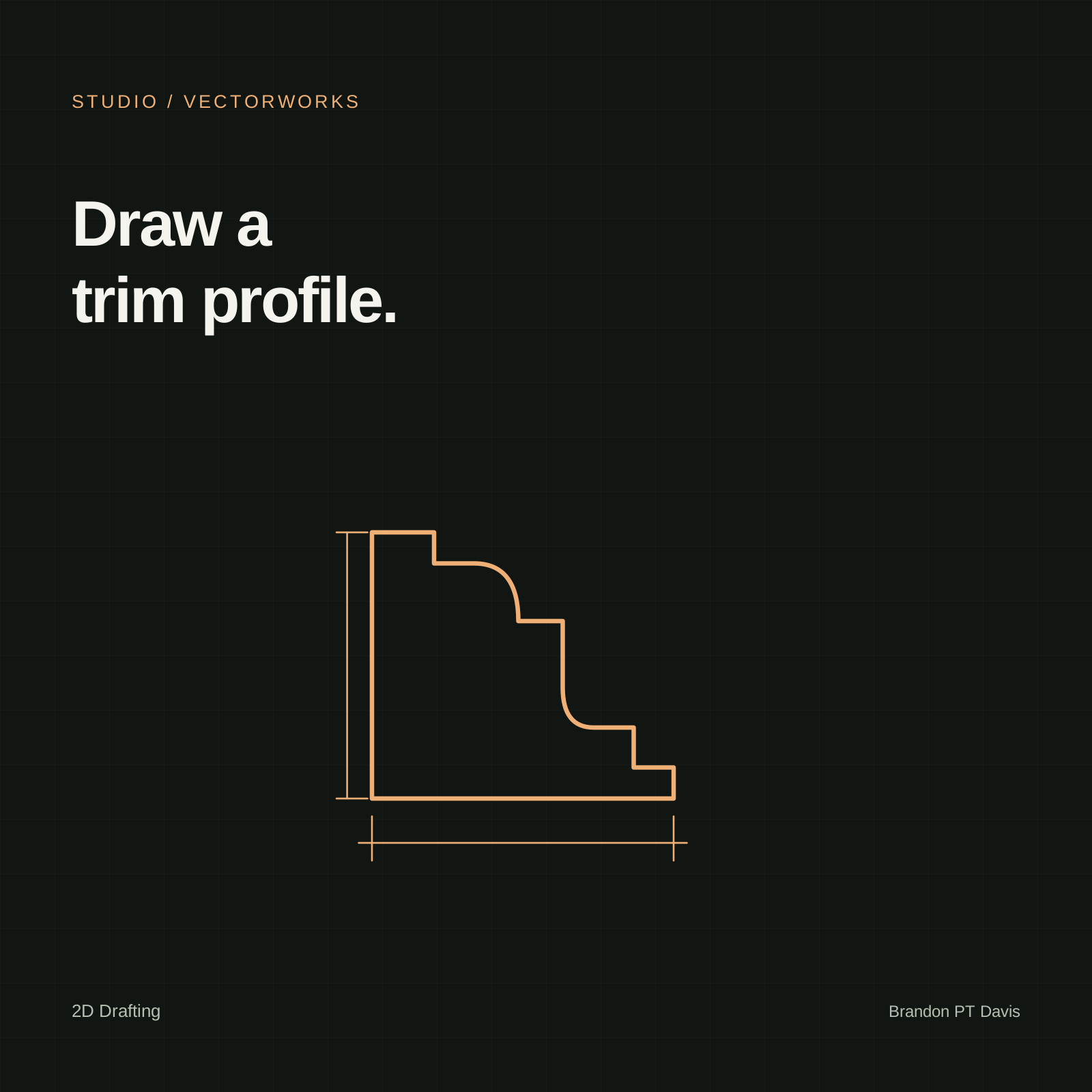
Sweep depends on a profile rotating around a center. Extrude Along Path depends on the relationship between the profile and the path, including the centerline offset needed when a trim profile should land on an edge instead of its own center.
Supporting material
Shortcuts
- Ctrl/Cmd + E
- Extrude selected 2D shape into 3D solid
- Ctrl + Alt + A
- Add Solids - combine multiple 3D objects into one
- Ctrl + Alt + S
- Subtract Solids - remove one solid from another
- Ctrl + Alt + I
- Intersect Solids - keep only overlapping volume
- Ctrl + Alt + X
- Extrude Along Path - apply profile along polyline
- Shift + C
- Toggle through 3D views (isometric, front, right, back)
Keep in mind
- Shortcuts should be checked across Mac, Windows, and custom workspaces.
- Render/view labels may vary by Vectorworks version.
Related resources
Potential exam questions
Apply the workflow to a drawing problem. Use these cards for study or discussion, then revisit the demonstration when you need context.
Question 1 of 2
After extruding a rectangle, Top/Plan still resembles the original shape. What should you do to verify the new height?
- Extrude it a second time
- Switch to a 3D view and inspect its extrusion value
- Increase the viewport scale
- Convert it back to a 2D polygon
An extrusion is four feet tall and needs to sit two feet above the layer plane without changing its height. Which value changes in the example?
- Its X dimension
- Its Y dimension
- Its extrusion height
- Its bottom Z value
Continue reading
Related articles
Tools & Technology
How to Create Trim Profiles in Vectorworks Using the Polyline Tool
Tools & Technology
Publishing Vectorworks Renderings for Presentation
Tools & Technology